
Show, don't type.
Liveora Studio records your screen and turns the take into a clean, marked-up video; Liveora Snap does the same for screenshots. Windows and macOS, one set of shortcuts, and nothing leaves your computer unless you send it.

Free preview 0.1.0 · tested on Windows 11 · macOS builds untested · Other systems, checksums and install notes
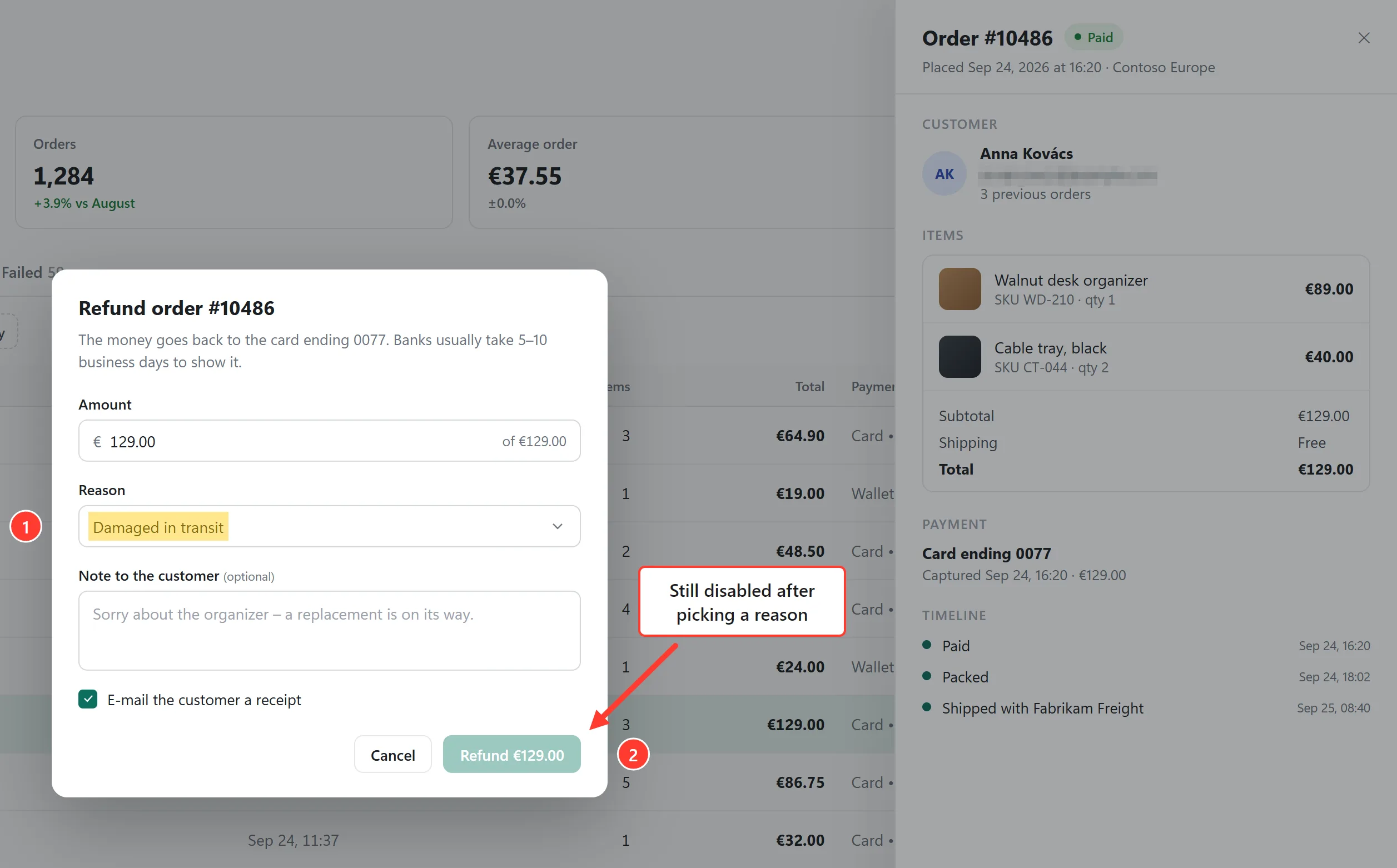
Saved by Liveora Snap as a PNG; the marks stay editable in the file next to it.
Played exactly as they came out of Liveora Studio 0.1.0 and Liveora Snap 0.1.0. Contoso is a made-up shop.
Liveora Studio: record once, cut the stumbles.
Record a whole screen, one window, a region, or a single browser tab with its own sound. Cut the pauses on the timeline, put numbered steps, a spotlight or a zoom exactly where they belong, and export an MP4, WebM or GIF that matches the preview frame for frame.
- Record
- Screen, window, browser tab or region · microphone, plus system audio on Windows · 30 or 60 fps
- While recording
- Ctrl+Shift+F9pauseCtrl+Shift+F10stop
- Timeline
- SsplitIOmark a rangeXcut itShift+Xkeep only it
- Export
- MP4 (H.264 + AAC) · WebM (VP9 + Opus) · GIF
Takes stream to disk while you record. If Liveora Studio ever crashes mid-take, the next start restores everything recorded so far as a project.
Everything Liveora Studio does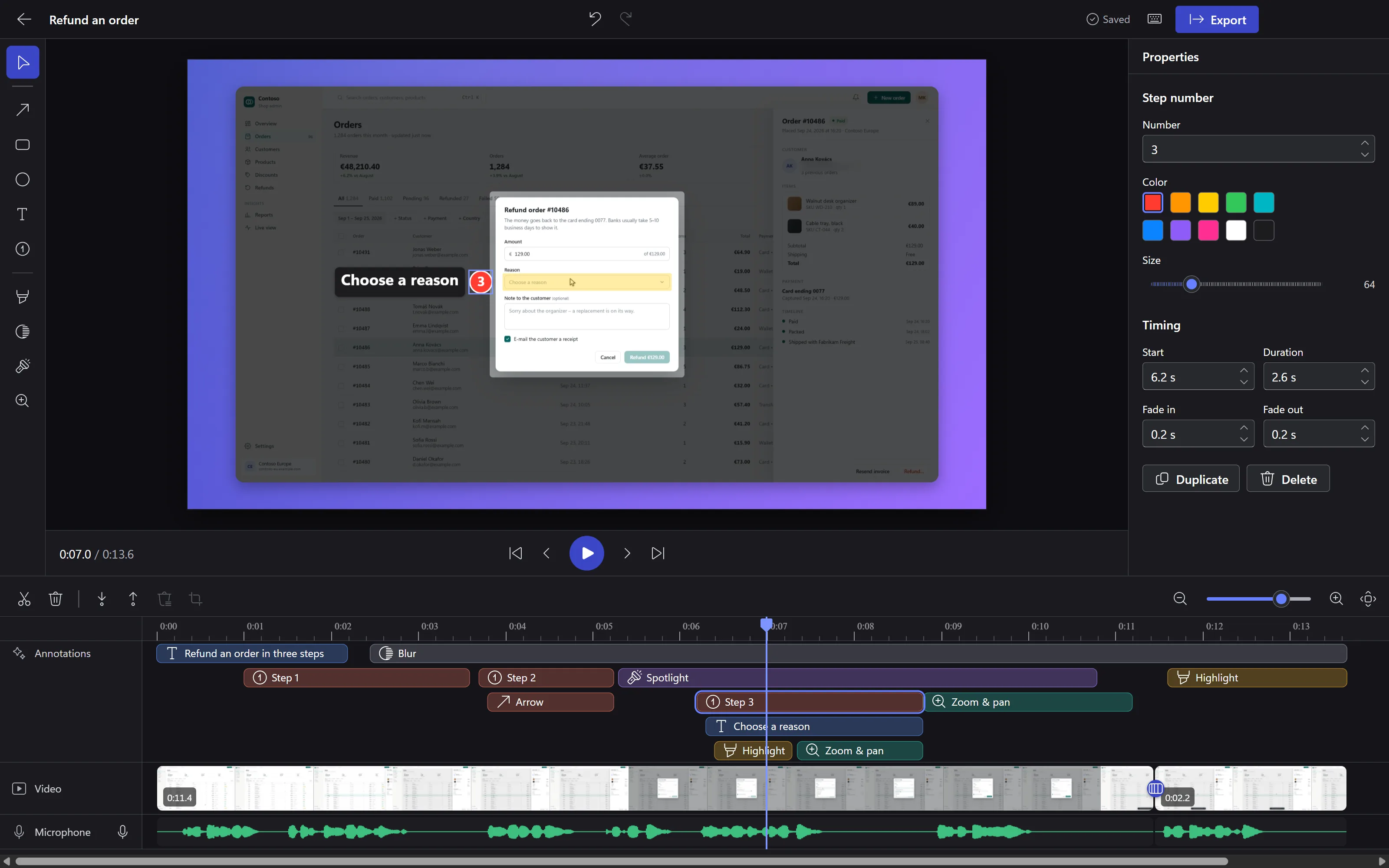
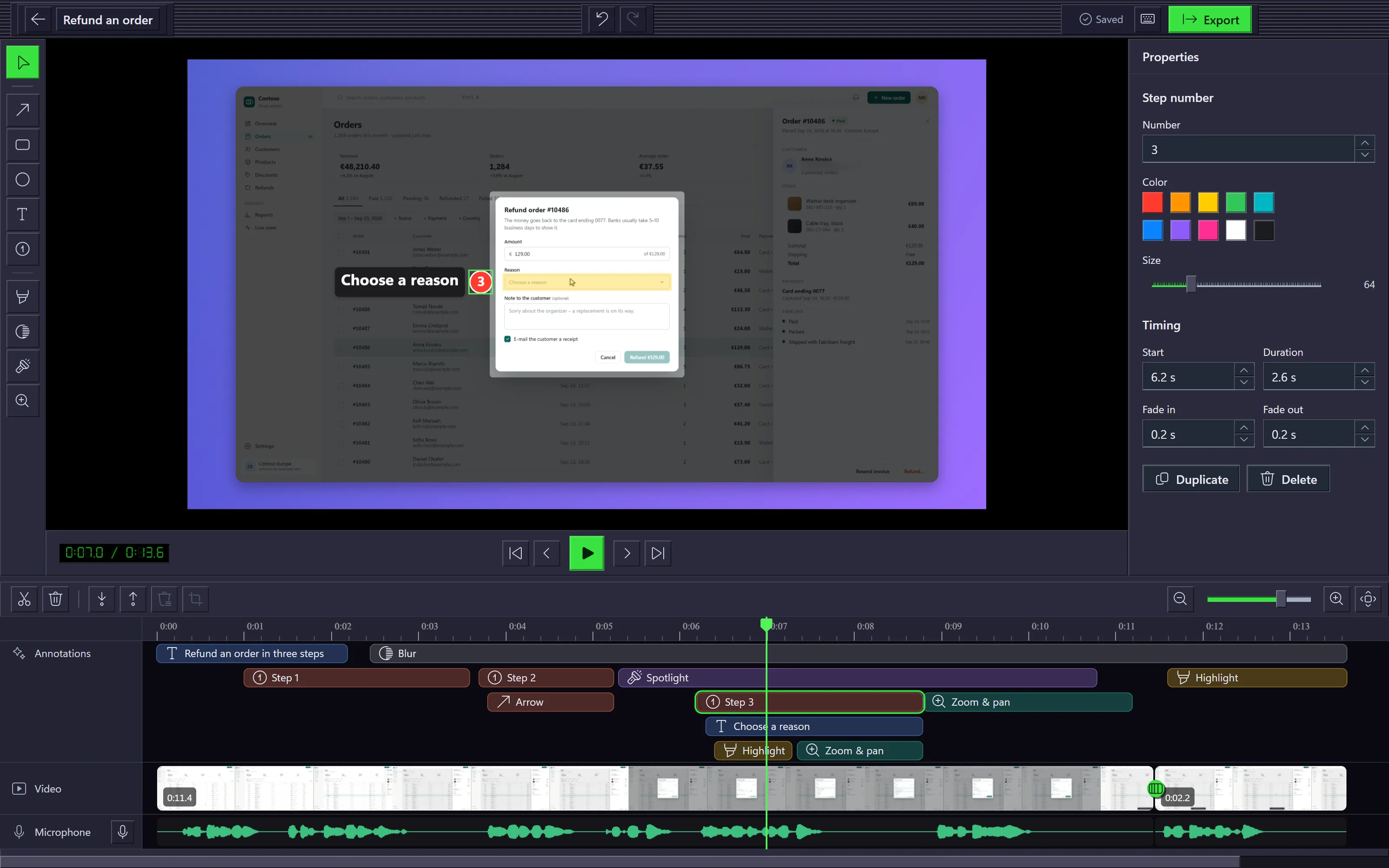
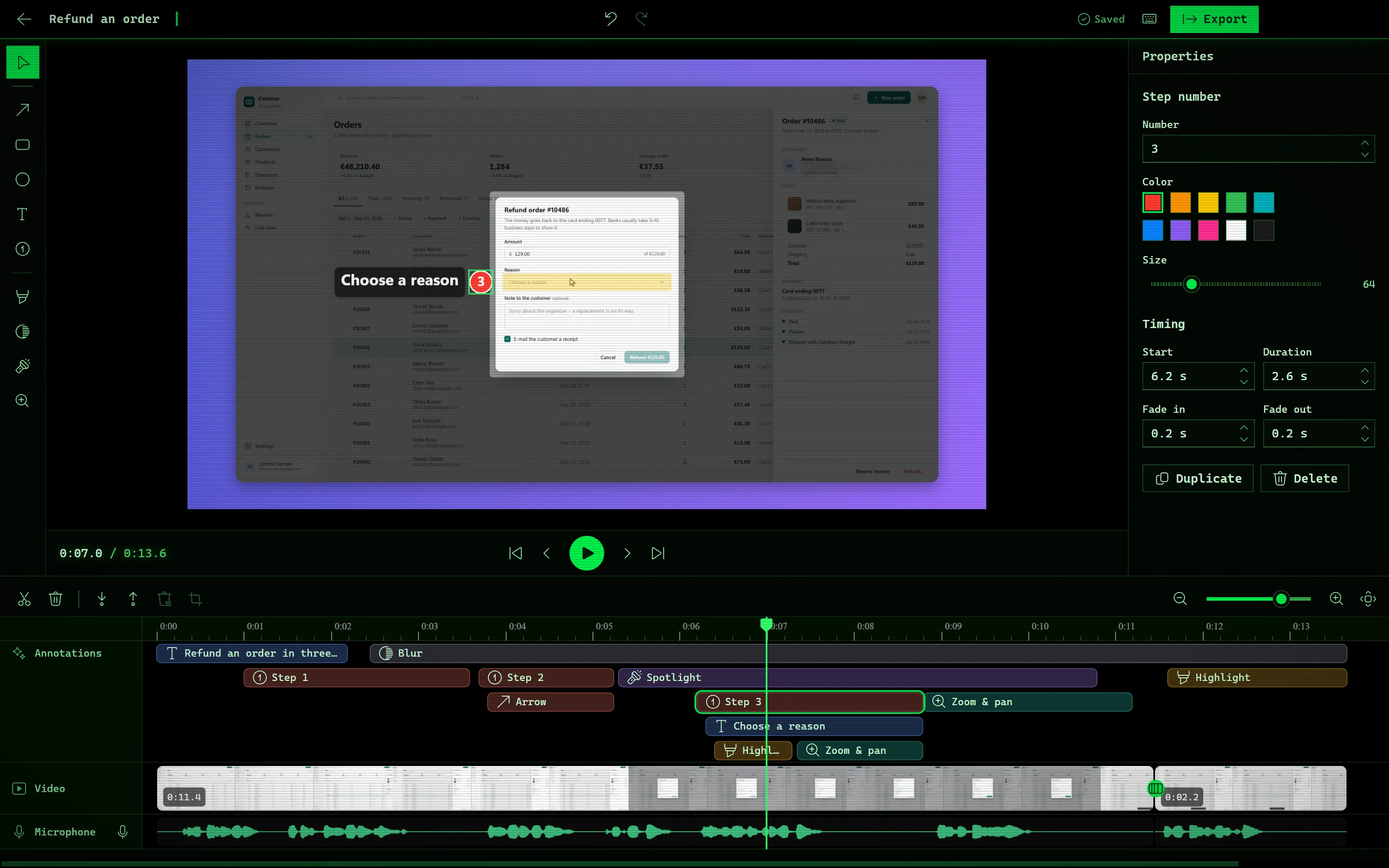
Liveora Studio 0.1.0 in the Dark skin, the default.Liveora Studio 0.1.0 in the Classic skin.Liveora Studio 0.1.0 in the Matrix skin.
Liveora Snap: point at the problem.
Press PrintScreen, drag over what matters, and the capture opens in an editor made for pointing: arrows, boxes, callouts, numbered steps, a highlighter, and a blur for the e-mail address that shouldn't be in the ticket. Then copy it back to the clipboard and paste.
- Capture
- PrtScregionShift+PrtScwindowCtrl+PrtScscreen
- On a Mac
- ⌘+Shift+Cregion⌘+Shift+Wwindow⌘+Shift+Fscreen
- Output
- Clipboard, PNG or JPEG · the marks stay editable next to the picture
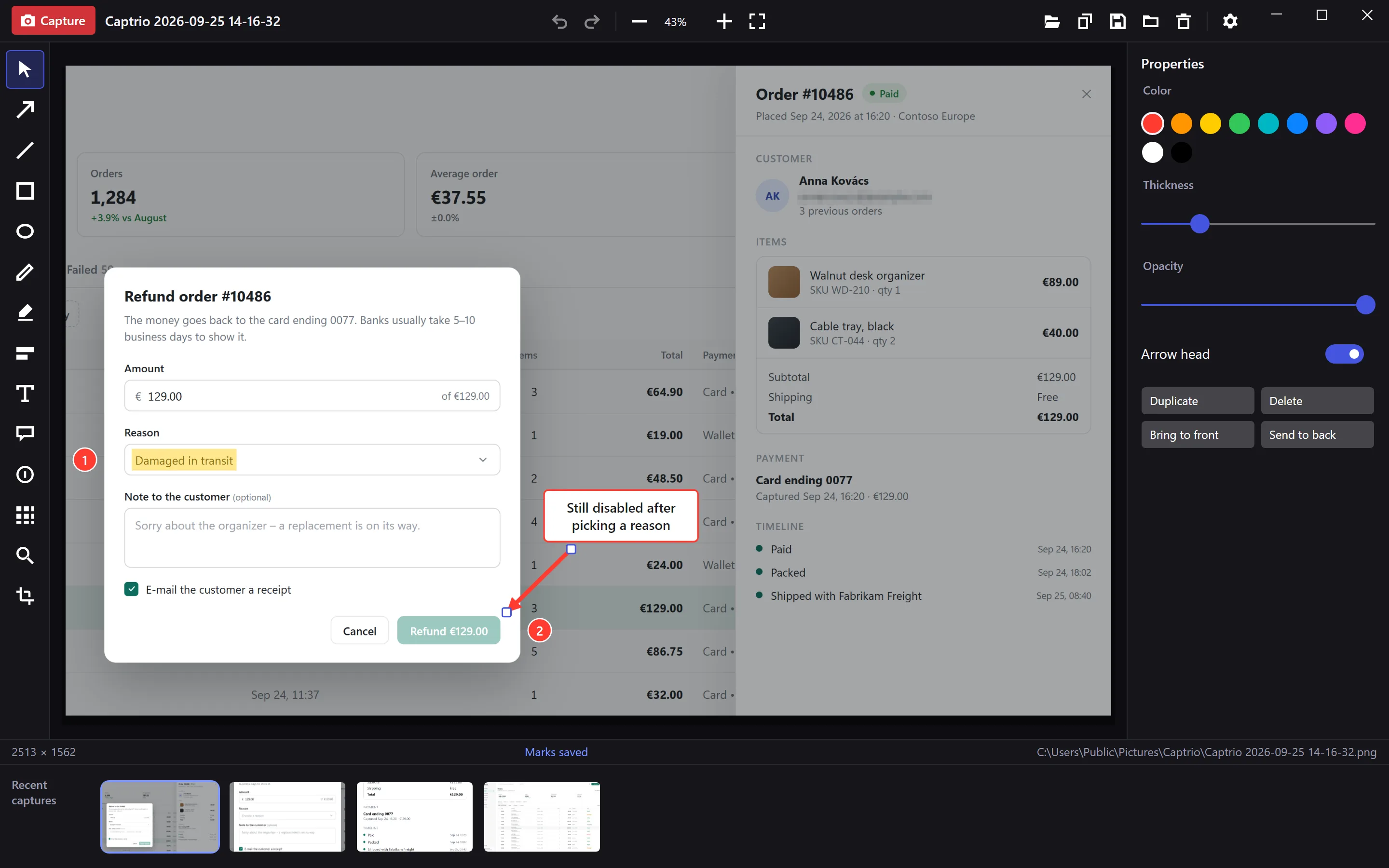
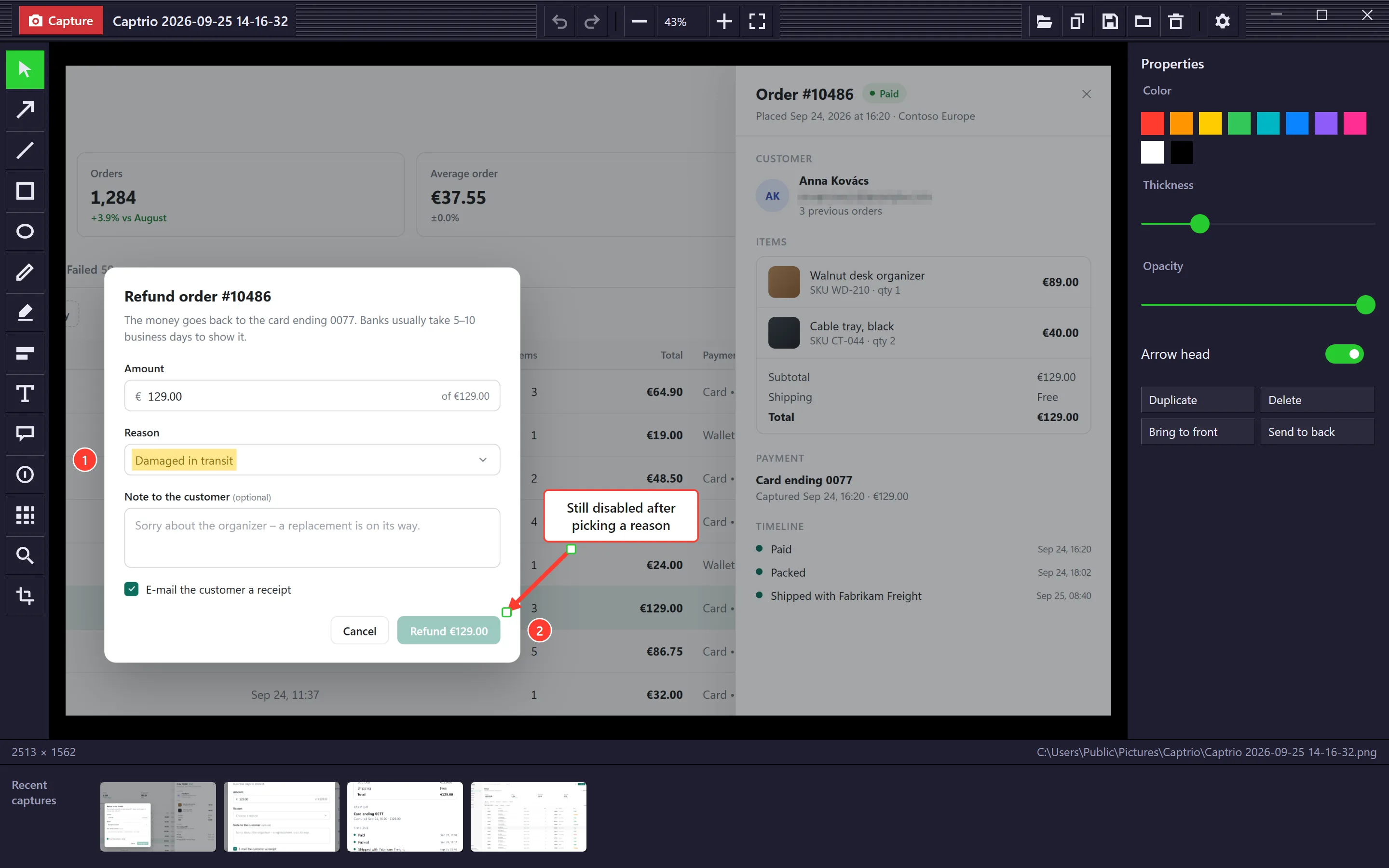
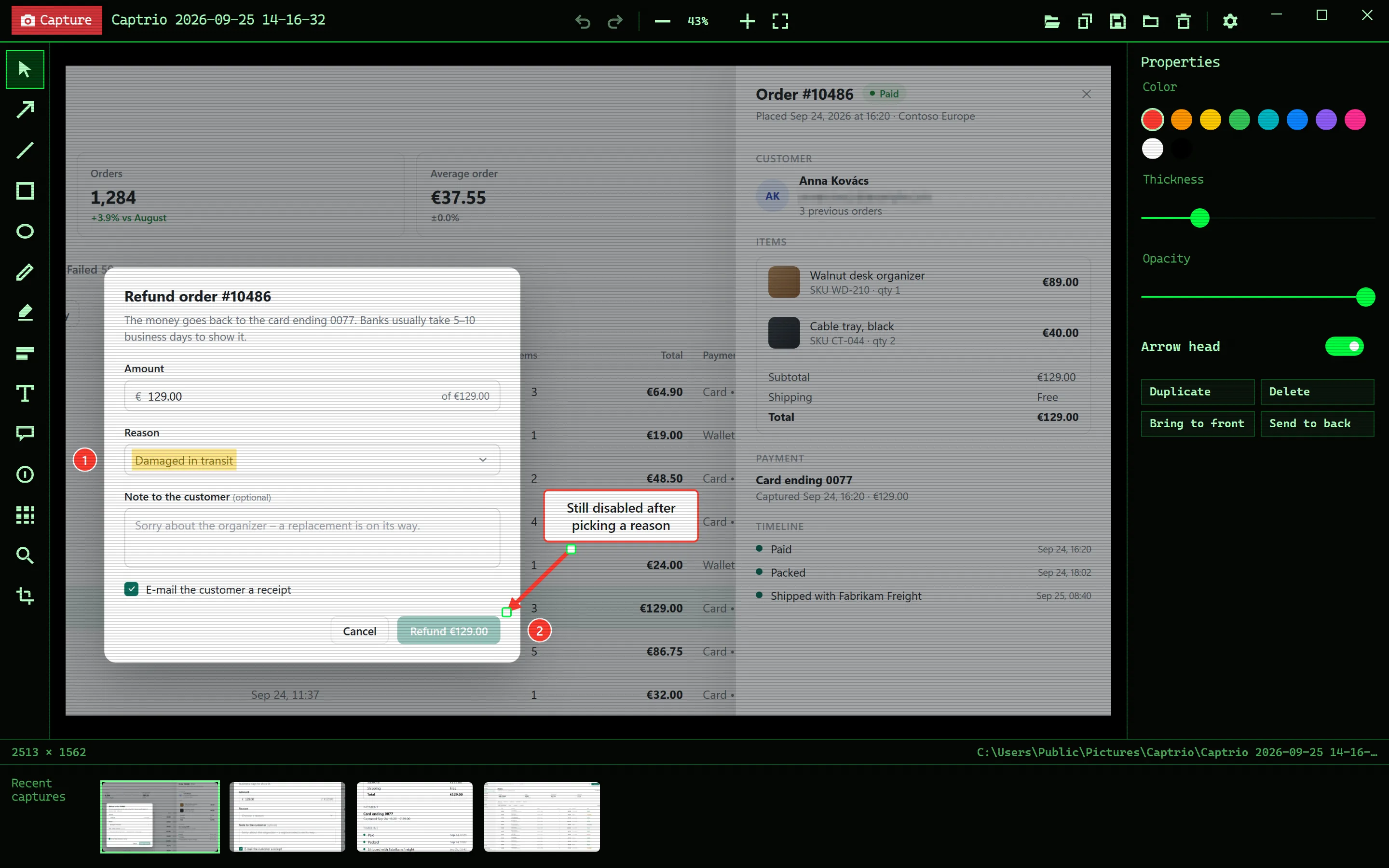
Liveora Snap 0.1.0 in the Dark skin, the default.Liveora Snap 0.1.0 in the Classic skin.Liveora Snap 0.1.0 in the Matrix skin.
Draw on the live screen.
Both apps borrow the keys of ZoomIt, the presenter's tool from Microsoft Sysinternals. Freeze the screen and zoom in, draw over whatever is running, type a note where the pointer is. In Liveora Snap the result becomes a screenshot; in Liveora Studio it goes straight into the recording.
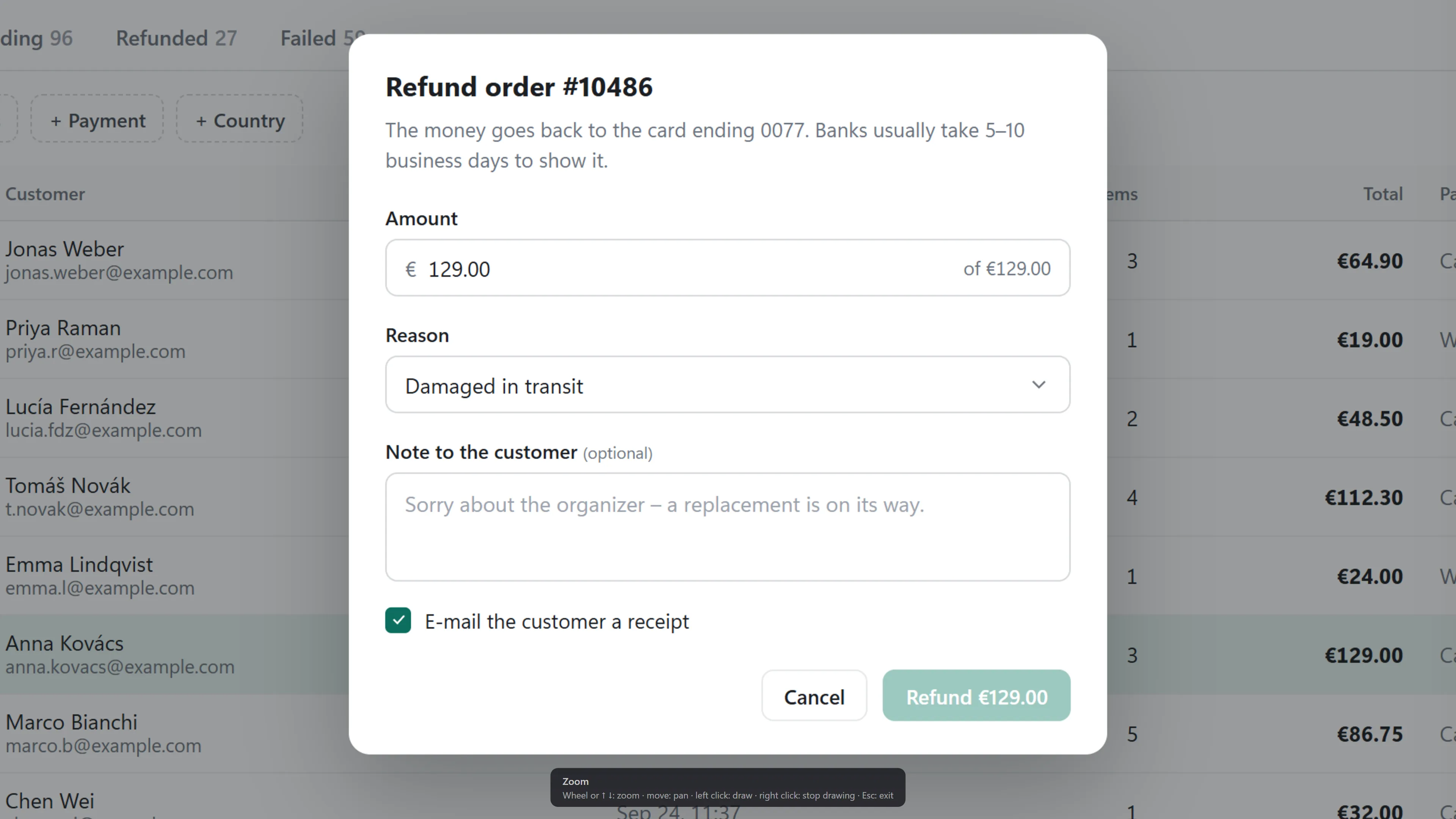
Freeze the screen and lean in
The picture stops and doubles around the pointer. Scroll or press ↑ ↓ to zoom, move the mouse to pan, click to draw on the magnified picture; a right-click ends the drawing.
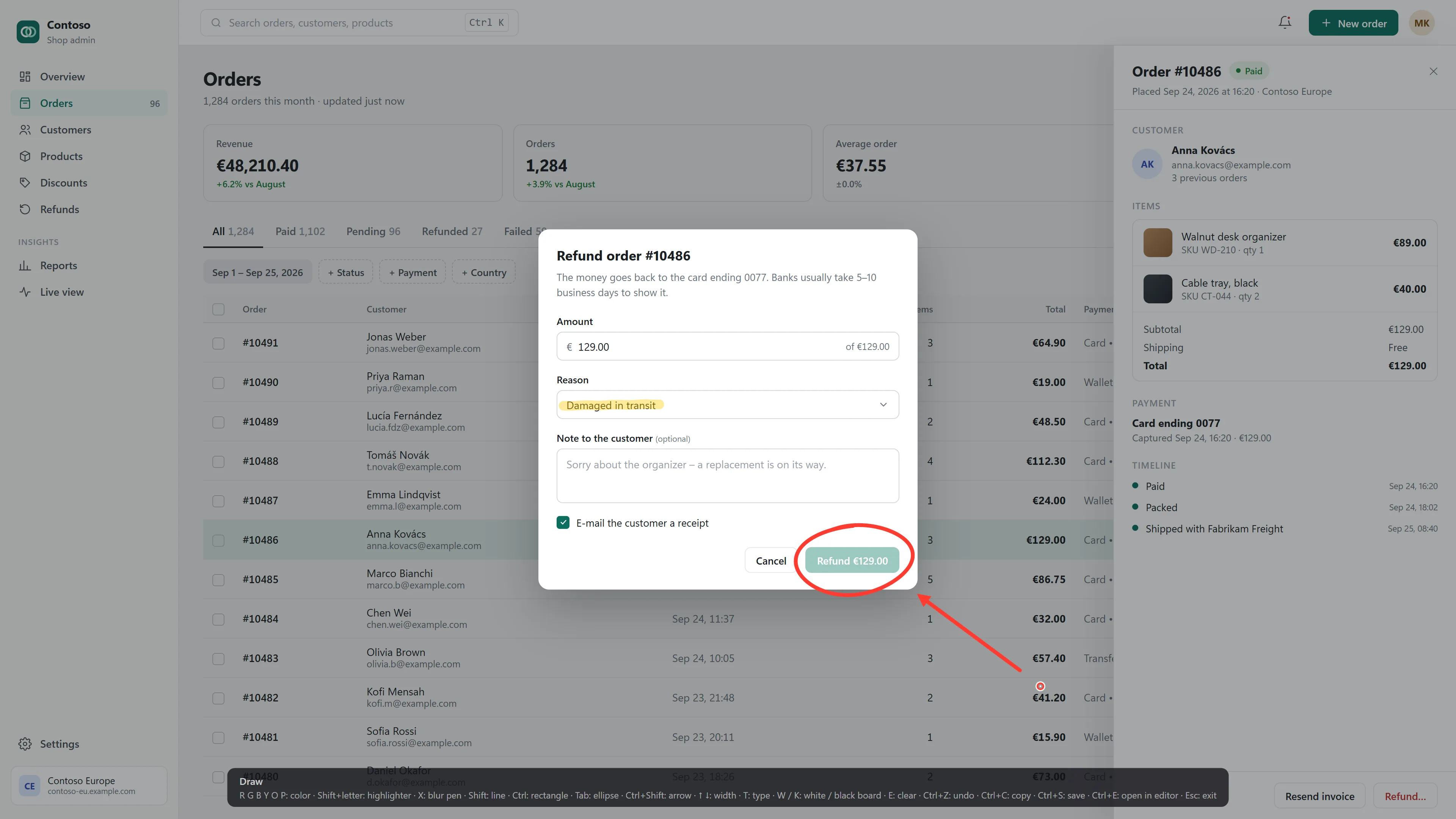
Draw on whatever is running
RGBYOPpick the pen
- Shift + letter a highlighter in that colour
- X a blur pen for anything private
- Shift Ctrl Tab line, rectangle, ellipse while you drag
- Ctrl+Shift an arrow
- T type where the pointer is
- W K a white or black board
- E Ctrl+Z wipe everything, undo one
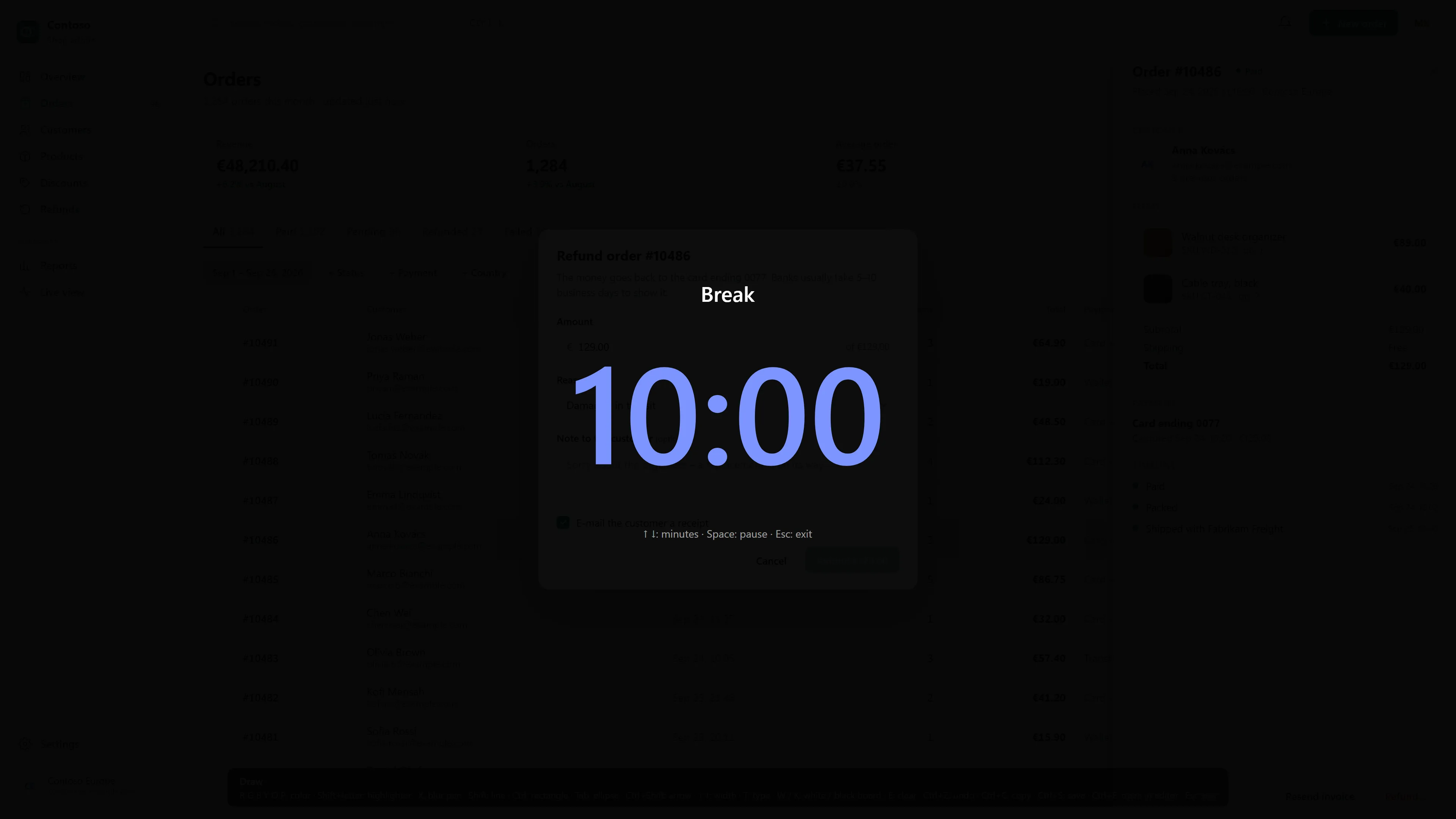
Put the break on the screen
Liveora Snap only: a full-screen countdown for the break, ten minutes unless you change it in Settings. ↑ ↓ set the minutes, Space pauses, Esc ends it.
While zooming or drawing, Ctrl+C copies the marked-up screen and Ctrl+S saves it as a PNG; Esc leaves any mode. On a Mac the global shortcuts use ⌘ instead of Ctrl. In Liveora Studio the same keys work while you record a screen or a region, and every mark goes into the video.
Four looks. This page wears three.
Dark is where both apps start and Light suits a bright office. Classic brings back bevels, LED digits and the green of a late-nineties media player; Matrix goes full phosphor, digital rain included. Switch the skin here and the screenshots made in that skin switch with it, because the apps really look like that.
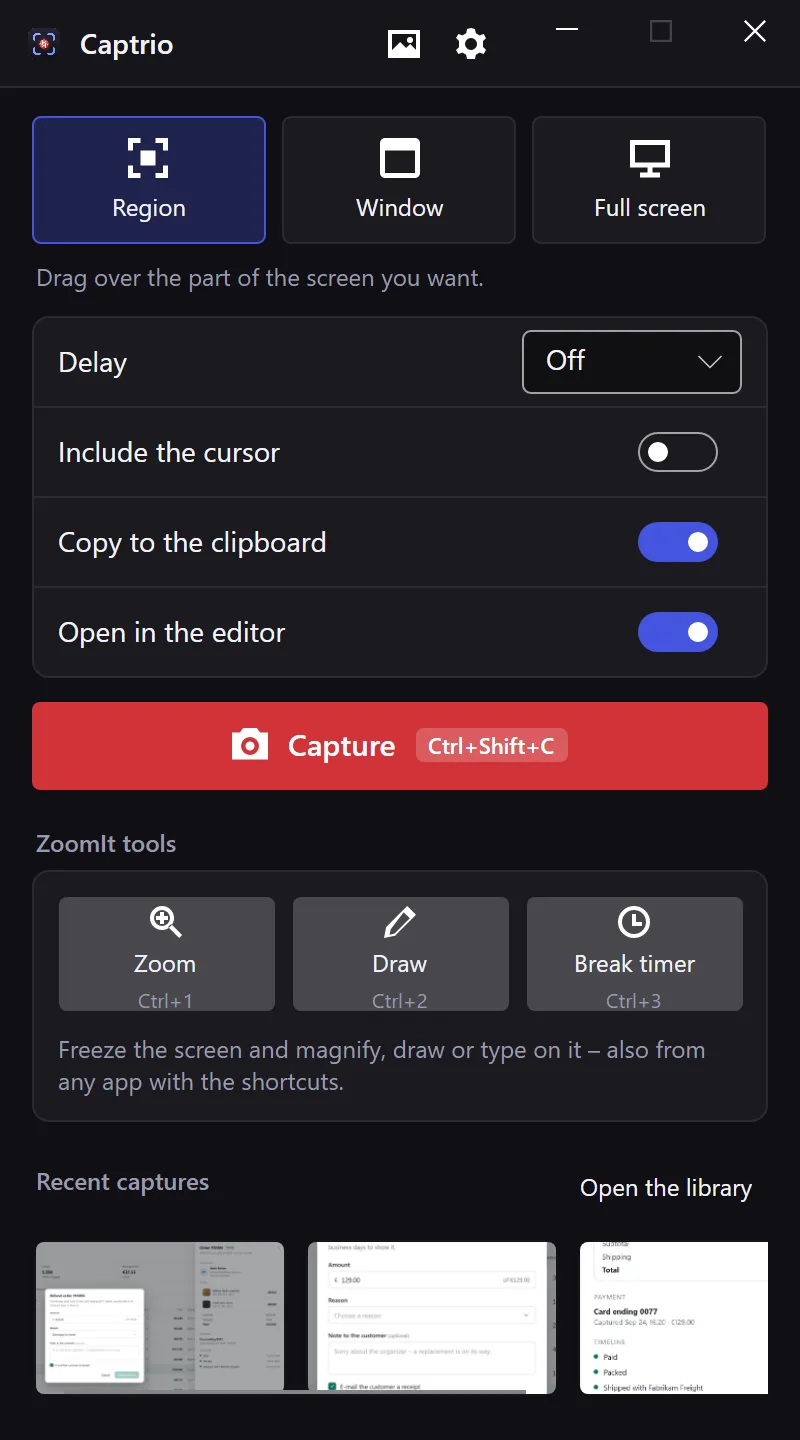
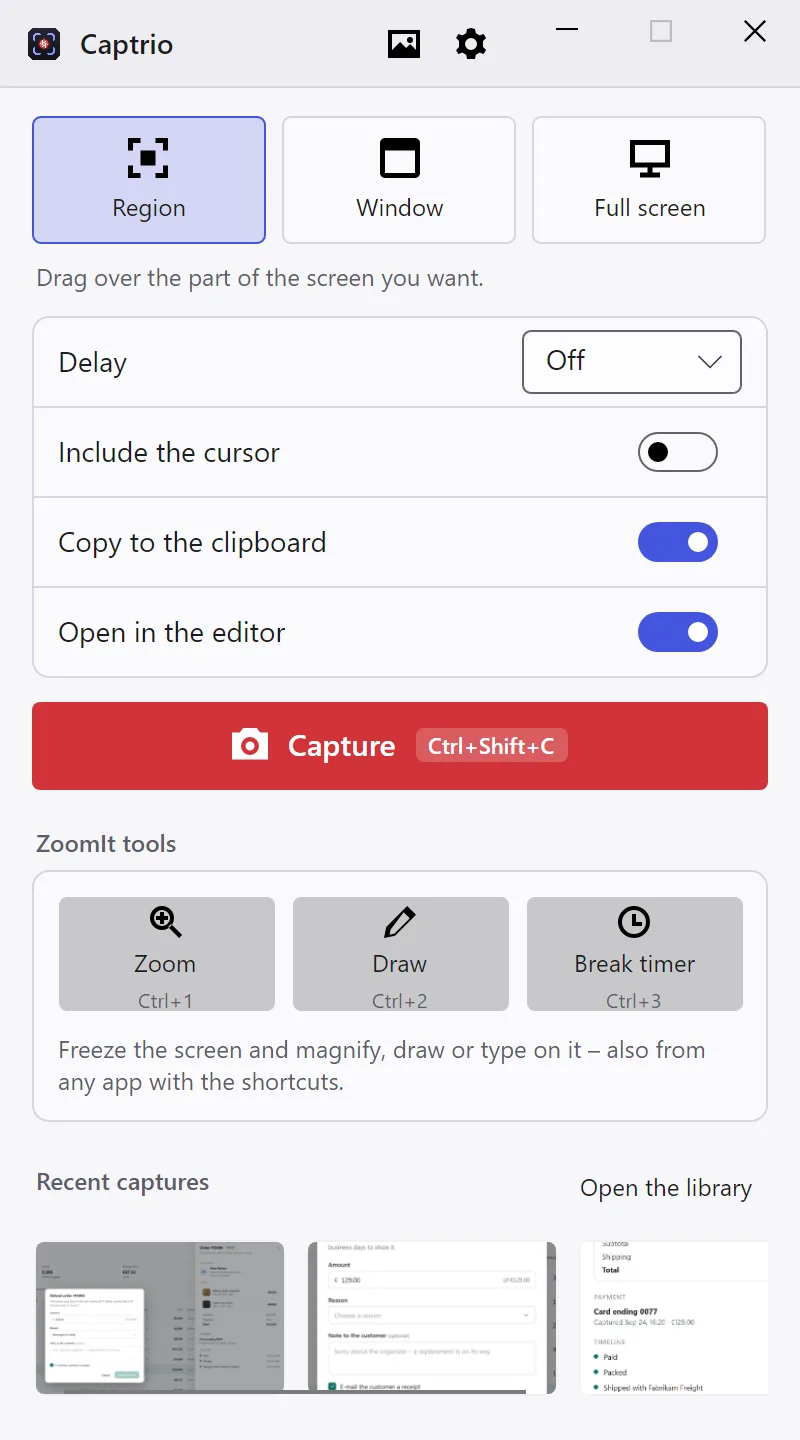
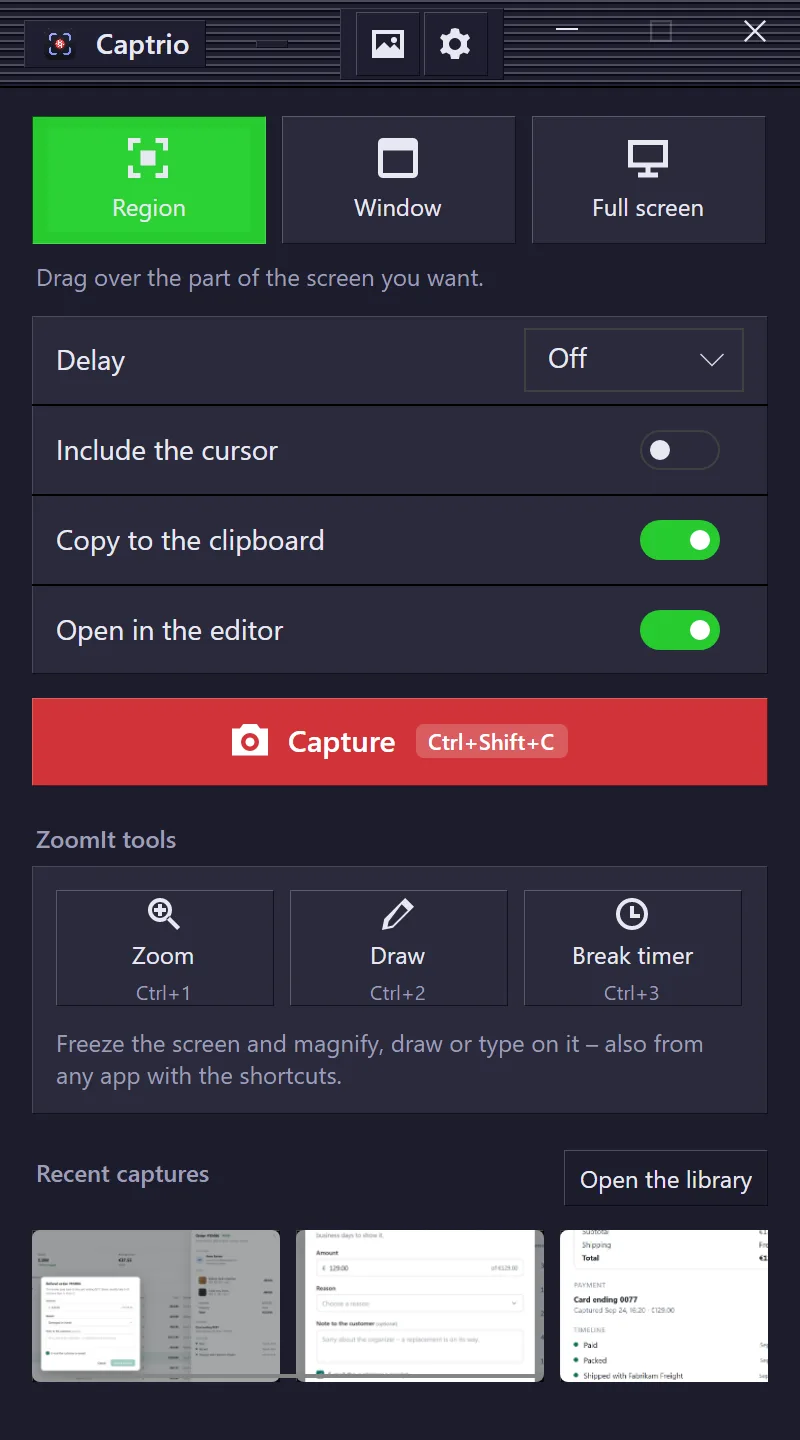
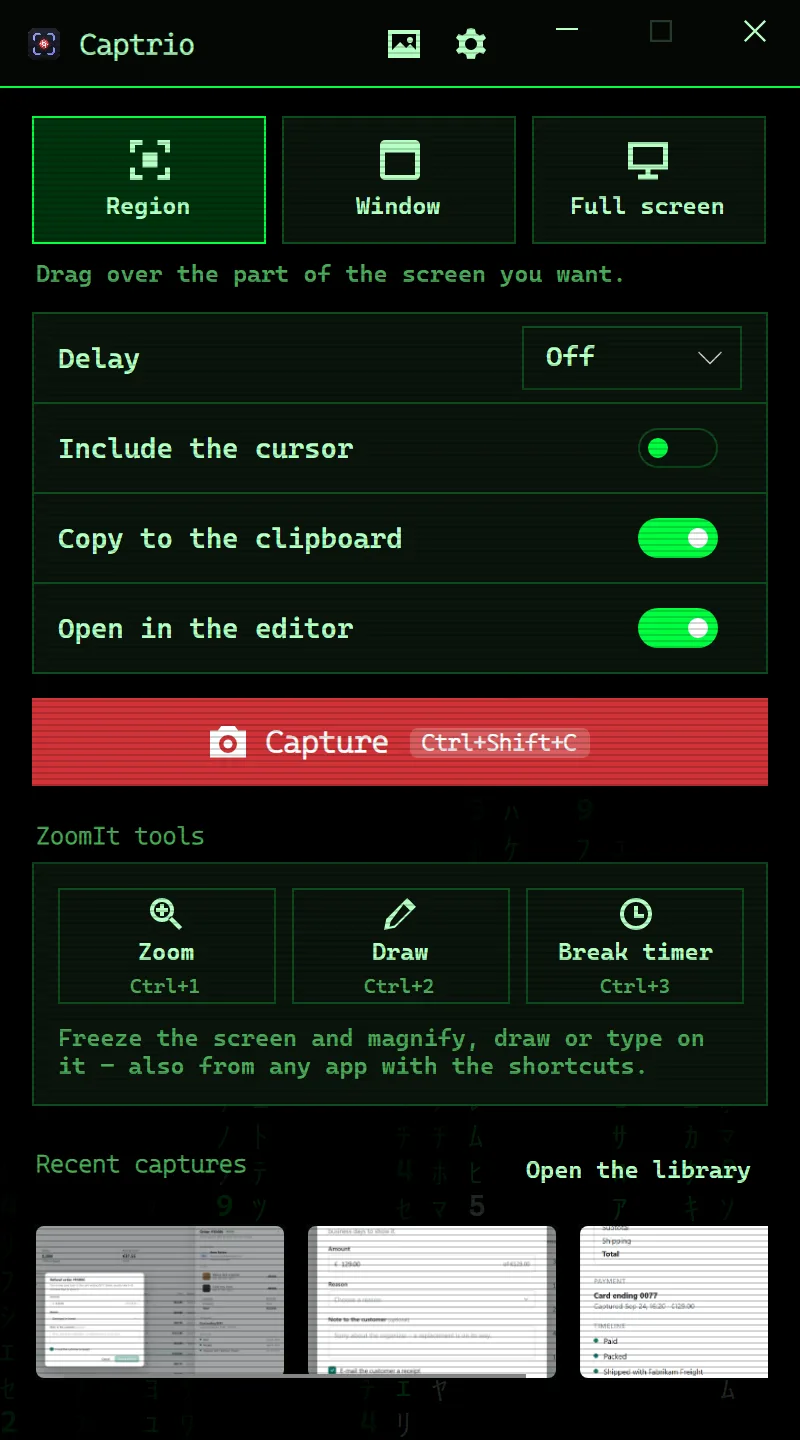
Liveora Snap's capture panel, shown with the Snagit-style shortcut layout; with the PrintScreen layout the Capture button reads PrintScreen.
Your captures stay on your computer.
There is no Liveora Studio or Liveora Snap account to create. Liveora Snap keeps its pictures in Pictures\Captrio, Liveora Studio its projects in Videos\Captora. Nothing is uploaded unless you press Share after an export in Liveora Studio, and then it goes to your own OneDrive or Google Drive.
What the 0.1 previews don't do yet
- The 0.1.0 previews were built before the rename, so they still install and run as Captora (Liveora Studio) and Captrio (Liveora Snap) and keep those names for their folders.
- The builds aren't code-signed yet: on Windows the browser and SmartScreen each ask once, and a Mac needs Open Anyway under Privacy & Security. What to click
- The macOS builds come straight from the build pipeline and haven't been tried on a real Mac yet.
- Liveora Studio can't record a Mac's system audio. A virtual audio device such as BlackHole works around it.
- Browser-tab recording needs Edge, Chrome, Brave or Vivaldi. With Safari or Firefox, record the window.
- Liveora Snap can't capture a page that scrolls beyond the screen yet.
Free while it's a preview.
Version 0.1.0, built on 25 September 2026. Paid licences will be sold on this site later; the preview costs nothing.